Overview
Procurator abstracts model provider details behind the Models registry. Administrators configure models once — including provider credentials, cost rates, and access controls — and agents reference models by name. This separation means you can swap a model provider or update a cost rate without touching agent configurations.
Procurator uses Spring AI as its model integration layer, which supports all major providers: Anthropic, OpenAI, Google Gemini, AWS Bedrock, Azure OpenAI, Ollama (local models), and others.
Every model in the registry has input and output token cost rates. These rates are used by FinOps to calculate real-time spend attribution, burn rate, and budget saturation — giving you accurate cost visibility without manual tracking.
Control Panel
The screenshot below shows the live Procurator administration interface for this feature.
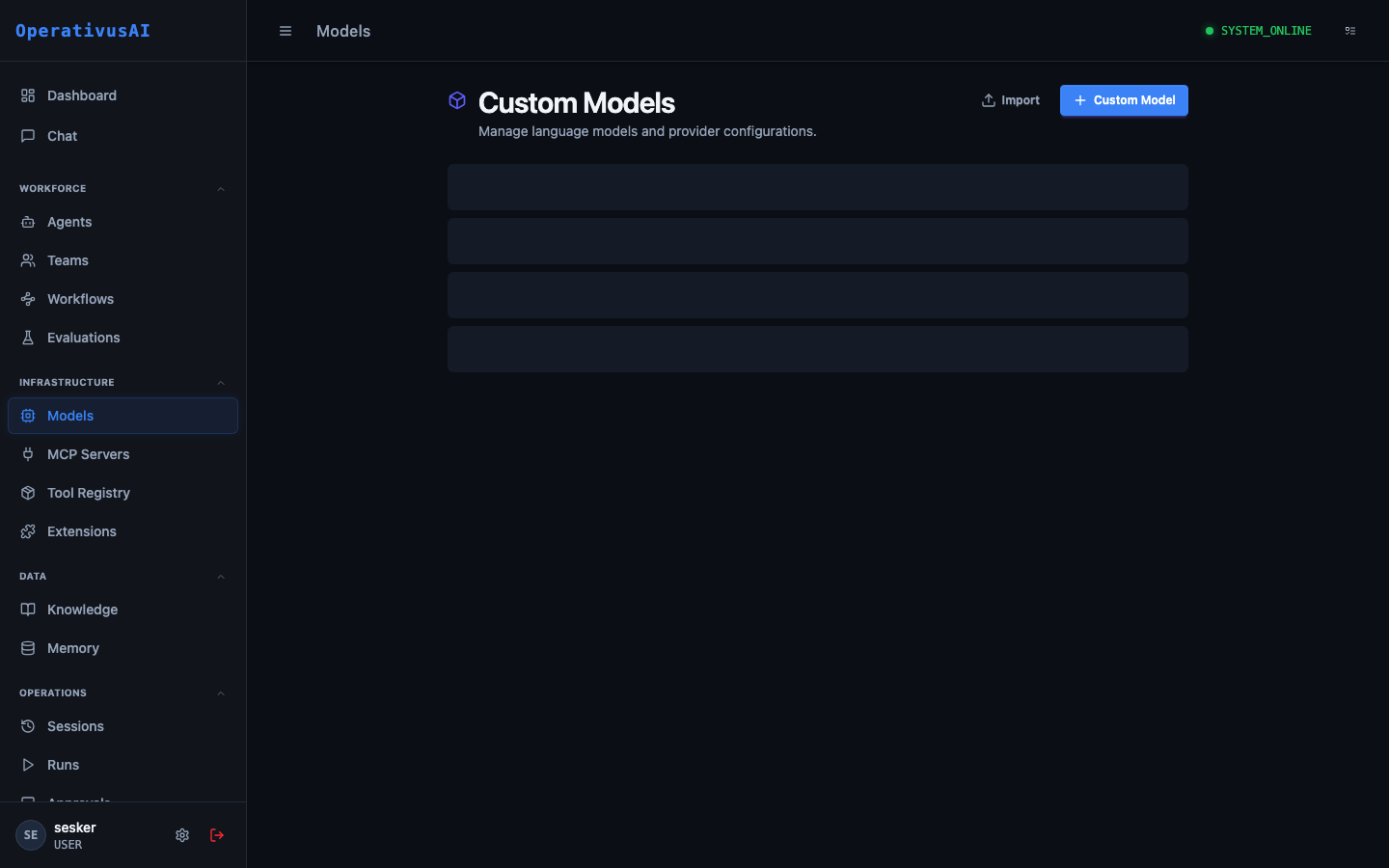
Models Registry — configure providers, cost rates, and access controls for every LLM.
Key Capabilities
Multi-provider Support
Register models from Anthropic, OpenAI, Google, AWS Bedrock, Azure, Ollama, and any Spring AI-compatible provider.
Cost Rate Configuration
Set input/output token cost rates per model. FinOps uses these rates for real-time spend attribution and budget enforcement.
Credential Management
Store API keys securely in Procurator's secret store. Agents never see raw credentials — the platform handles authentication.
Default Parameters
Set organization-wide defaults for temperature, max tokens, and other parameters that agents can override within configured bounds.
Access Restriction
Restrict high-cost or sensitive models to specific teams or roles. Prevent unauthorized use of premium model tiers.
Usage Statistics
View per-model usage statistics: total tokens consumed, total cost, and request count over configurable time windows.
Administration
Adding a Model
- 1Navigate to Resources → Models
The Models page lists all registered models and their current status.
- 2Click "Add Model"
The model configuration form opens.
- 3Select Provider
Choose the model provider (Anthropic, OpenAI, etc.). The form adapts to show provider-specific configuration fields.
- 4Enter Model ID
Provide the provider-specific model identifier (e.g.,
claude-opus-4-7,gpt-4o). This must match the provider's API exactly. - 5Configure API Credentials
Enter the API key or configure the credential reference. Keys are stored encrypted in Procurator's secret store.
- 6Set Cost Rates
Enter the input token cost (per 1M tokens) and output token cost (per 1M tokens) for FinOps attribution.
- 7Configure Access Control
Optionally restrict model access to specific teams or roles.
- 8Test and Save
Click "Test Connection" to verify the API key and model ID are correct before saving.
Configuration Reference
| Field | Type | Required | Description |
|---|---|---|---|
| displayName | string | required | Human-readable name shown in agent configuration dropdowns (e.g., "Claude Opus 4.7"). |
| modelId | string | required | Provider-specific model identifier used in API calls (e.g., claude-opus-4-7). |
| provider | enum | required | Provider type: ANTHROPIC, OPENAI, GOOGLE, BEDROCK, AZURE_OPENAI, OLLAMA, CUSTOM. |
| apiKey | secret | required | Provider API key, stored encrypted. Never exposed to agents or users. |
| baseUrl | string | optional | Override the provider's default API endpoint. Required for Azure OpenAI, Ollama, and custom deployments. |
| costPerInputMToken | decimal | optional | USD cost per 1 million input tokens. Used by FinOps for spend attribution. |
| costPerOutputMToken | decimal | optional | USD cost per 1 million output tokens. Used by FinOps for spend attribution. |
| defaultTemperature | float | optional | Organization-wide default temperature for this model. Agents may override within allowed bounds. |
| maxContextTokens | integer | optional | Maximum context window size for this model, used for context length validation. |
| allowedTeamIds | array | optional | If set, only agents belonging to these teams can select this model. |
Configuring Cost Rates for FinOps
Accurate cost rates are essential for FinOps to provide meaningful spend attribution. Set rates matching your current provider pricing:
Provider pricing changes frequently. Review model cost rates quarterly and update them in the Models registry to maintain FinOps accuracy.
Restricting Model Access
To prevent unauthorized use of expensive or sensitive models, use the allowedTeamIds field. When set, only agents belonging to the specified teams will see this model in their configuration dropdown.
Common patterns:
- Restrict Opus to senior engineers: Only allow the Engineering team's agents to use the most powerful (and most expensive) models.
- Lock customer-facing agents to specific models: Ensure production agents use only approved, tested model versions.
- Allow Ollama only for internal agents: Local model deployments may not meet data governance requirements for certain use cases.
Permissions
- models:read— View the models registry (display names and capabilities only — not credentials)
- models:create— Register new models
- models:modify— Update model configuration including credentials and cost rates
- models:delete— Remove models from the registry (blocked if agents reference the model)
Best Practices
- Use display names that include the provider. Naming a model "Anthropic Claude Opus 4.7" rather than just "Opus" prevents confusion when you have multiple providers configured.
- Set cost rates for every model. Even if FinOps budgets aren't currently enforced, accurate rates provide historical spend data you'll want later.
- Rotate API keys in Procurator when rotating at the provider. Update the key in the Models registry immediately after rotating — Procurator caches credentials for 60 seconds.
- Test the connection before saving. A misconfigured model silently fails at agent execution time, causing confusing errors. Always verify the connection in the configuration form.