Overview
Autonomous agents are powerful — but "autonomous" doesn't have to mean "unchecked." Approval Gates let you define exactly where humans stay in the loop without slowing down the parts of your pipeline that don't need oversight.
When an agent execution reaches an Approval Gate node in a Workflow, the session pauses and enters PENDING_APPROVAL status. Procurator notifies the designated reviewers, who can inspect the agent's proposed action — including the full context that led to it — and choose to approve, reject, or modify the request before the agent proceeds.
Approval Gates are nodes in the Workflow Editor. You add them to a workflow's execution path between the step that prepares an action and the step that executes it. The Approvals page is where reviewers action those gates — it is not where gates are configured.
Control Panel
The screenshot below shows the live Procurator administration interface for this feature.
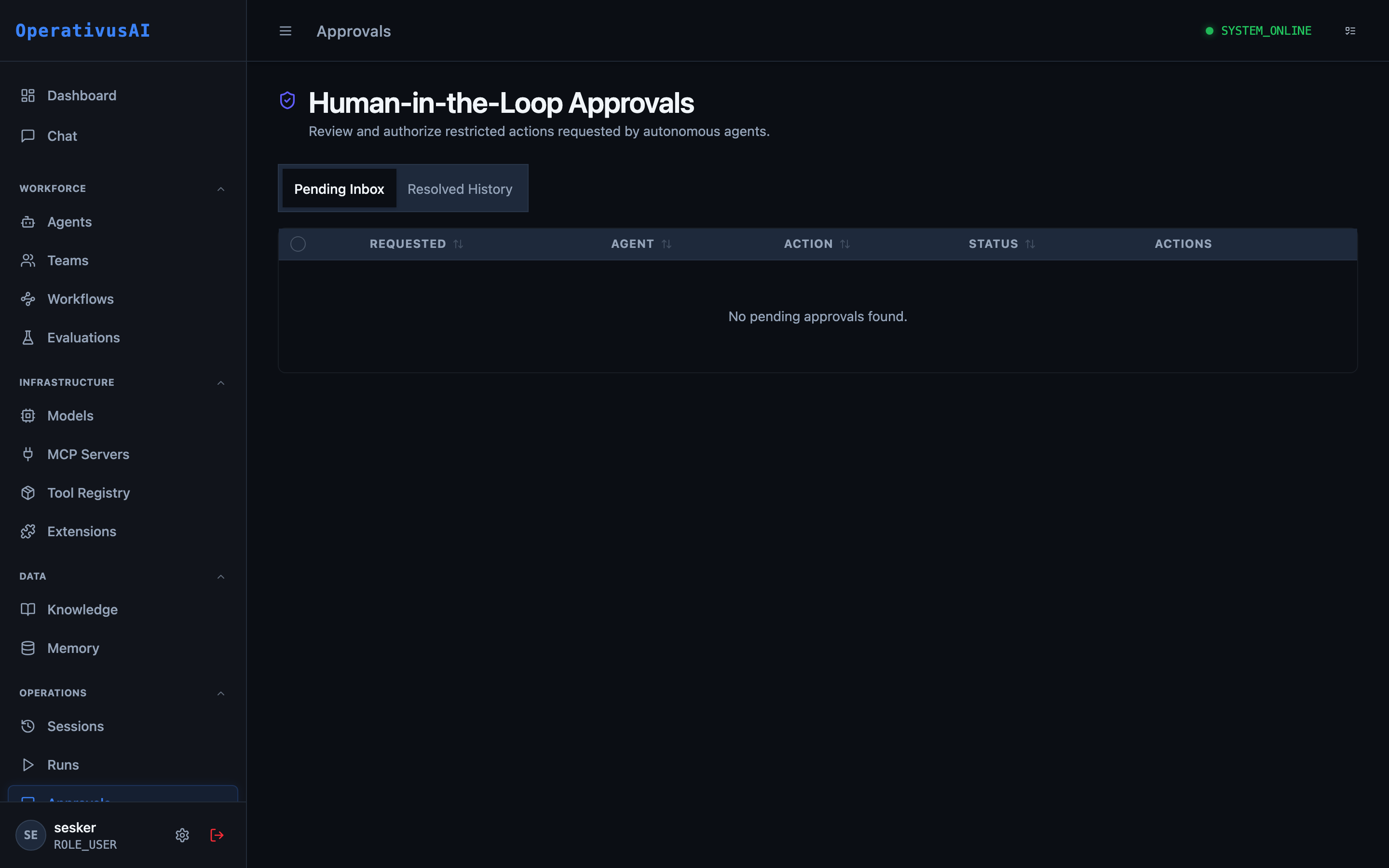
Approvals — Human-in-the-Loop gate queue for reviewing and actioning pending agent decisions.
How Approval Gates Work
The pause is durable: if the approval request sits in the queue overnight, the session remains paused until a decision is made (or the gate's configured timeout expires). There is no execution state to lose.
Key Capabilities
Durable Pause
Sessions pause indefinitely at gates — no timeout unless explicitly configured. Reviewers can action requests at their own pace without risking session expiry.
Full Context Visibility
Reviewers see the complete conversation trace, the tool call the agent wants to make, and all parameters — not just a summary. Make informed decisions with the full picture.
Parameter Override
Reviewers can modify the agent's proposed action parameters before approving — correcting a value or scope without rejecting and restarting the workflow.
Multi-Channel Notification
Approval requests trigger notifications via email, Slack, or webhook to configured reviewer groups. No need to monitor the queue manually.
Escalation & Timeout
Configure auto-escalation to secondary reviewers after a timeout, or auto-approve / auto-reject requests that exceed the SLA window.
Approval Analytics
Track approval queue depth, average review time, approve/reject rates by gate, and reviewer workload — optimize your HITL strategy with data.
Administration
Approvals Queue
Navigate to Operations → Approvals. The queue shows all pending approval requests across all workflows and agents. Each row displays:
- Request ID — Unique identifier for the approval request.
- Gate Name — The name of the Approval Gate node in the workflow (e.g., "Approve Database Delete").
- Agent / Workflow — Which agent and workflow generated this request.
- Requested Action — A human-readable summary of what the agent proposes to do.
- Requested By — The user whose session triggered this gate.
- Waiting Since — How long the session has been paused.
- Priority — Configured priority level (LOW / MEDIUM / HIGH / CRITICAL).
Reviewing a Request
- 1Open the request
Click the request ID or "Review" button to open the approval detail view.
- 2Review context
Read the full conversation trace and inspect the proposed action parameters. Expand sections as needed.
- 3Choose your action
Select Approve, Reject, or Modify. If modifying, edit the parameter fields that need changing.
- 4Add a note (optional)
Add a reviewer note explaining your decision. Notes are recorded in the session audit trail.
- 5Submit decision
Confirm your decision. The session resumes immediately (or ends, if rejected). The request is removed from the queue.
Approval Detail View
The detail view provides everything a reviewer needs to make a decision:
- Proposed Action Panel: Tool name, MCP server, and a structured display of the proposed input parameters. All parameter values are shown, with sensitive values masked unless the reviewer has the appropriate permission.
- Context Panel: The last N turns of the conversation that led to this approval request — configurable per gate.
- Risk Indicators: Automated risk flags raised by Procurator's policy engine (e.g., "This tool writes to production database", "Cost estimate: $12.50").
- History Panel: Prior decisions for this gate across previous sessions — useful for seeing patterns.
Configuring Approval Gates in Workflows
Approval Gate nodes are added in the Workflow Editor. Each gate can be configured with:
| Field | Type | Description |
|---|---|---|
| name | string | Human-readable name shown in the approvals queue (e.g., "Approve Customer Refund"). |
| reviewerGroupId | string | The team or role group whose members receive this approval request. |
| timeoutSeconds | integer | How long to wait before escalating or applying the timeout action. Default: no timeout. |
| timeoutAction | enum | ESCALATE, AUTO_APPROVE, or AUTO_REJECT. Action taken when timeoutSeconds elapses. |
| escalationGroupId | string | Secondary reviewer group for escalation. Used when timeoutAction is ESCALATE. |
| priority | enum | LOW, MEDIUM, HIGH, CRITICAL. Controls queue sort order and notification urgency. |
| allowModify | boolean | Whether reviewers can modify action parameters before approving. Default: true. |
| contextTurns | integer | Number of prior conversation turns to show reviewers for context. Default: 10. |
Reviewer Notifications
When a new approval request enters the queue, Procurator notifies the configured reviewer group via:
- In-app notification: A badge appears on the Approvals menu item in the sidebar.
- Email: An email with the request summary and a direct link to the review page.
- Slack: A Slack message to a configured channel with Approve/Reject action buttons (requires Slack integration).
- Webhook: A POST to a configured endpoint with the full approval request payload for custom integrations.
Configure notification channels per reviewer group in Administration → Settings → Notifications.
Approval Policies
Beyond manual gate configuration, the Registry's governance system can automatically flag tool calls as requiring approval. When a tool is marked "Require Approval" in the Registry, any workflow that invokes that tool without an explicit Approval Gate is flagged with a warning in the Workflow Editor. This creates a policy-driven safety net:
- The Registry defines which tools are high-risk.
- The Workflow Editor enforces that those tools have approval gates.
- The Approvals queue is where humans action those gates.
Registry "Require Approval" flags generate warnings in the Workflow Editor, but do not block deployment. This is by design — the platform surfaces the risk but trusts administrators to make the final call on workflow deployment.
Permissions
- approvals:read— View the approvals queue and request details
- approvals:review— Approve, reject, or modify approval requests
- approvals:configure— Configure approval gate settings and reviewer groups