Overview
Every time an agent runs — whether invoked directly via API, triggered by a Schedule, called by a Workflow, or initiated by another agent via A2A — Procurator creates a Session record. The session captures the full execution trace from first user message to final response, including every intermediate step the agent took.
Sessions serve dual purposes: they are the operational dashboard for monitoring running agents in real time, and the compliance record for post-hoc investigation, audit, and cost attribution.
Session records are append-only. Once a turn is written to the ledger it cannot be modified or deleted through the UI. This guarantees that the audit trail reflects exactly what happened — not a post-edited version.
Control Panel
The screenshot below shows the live Procurator administration interface for this feature.
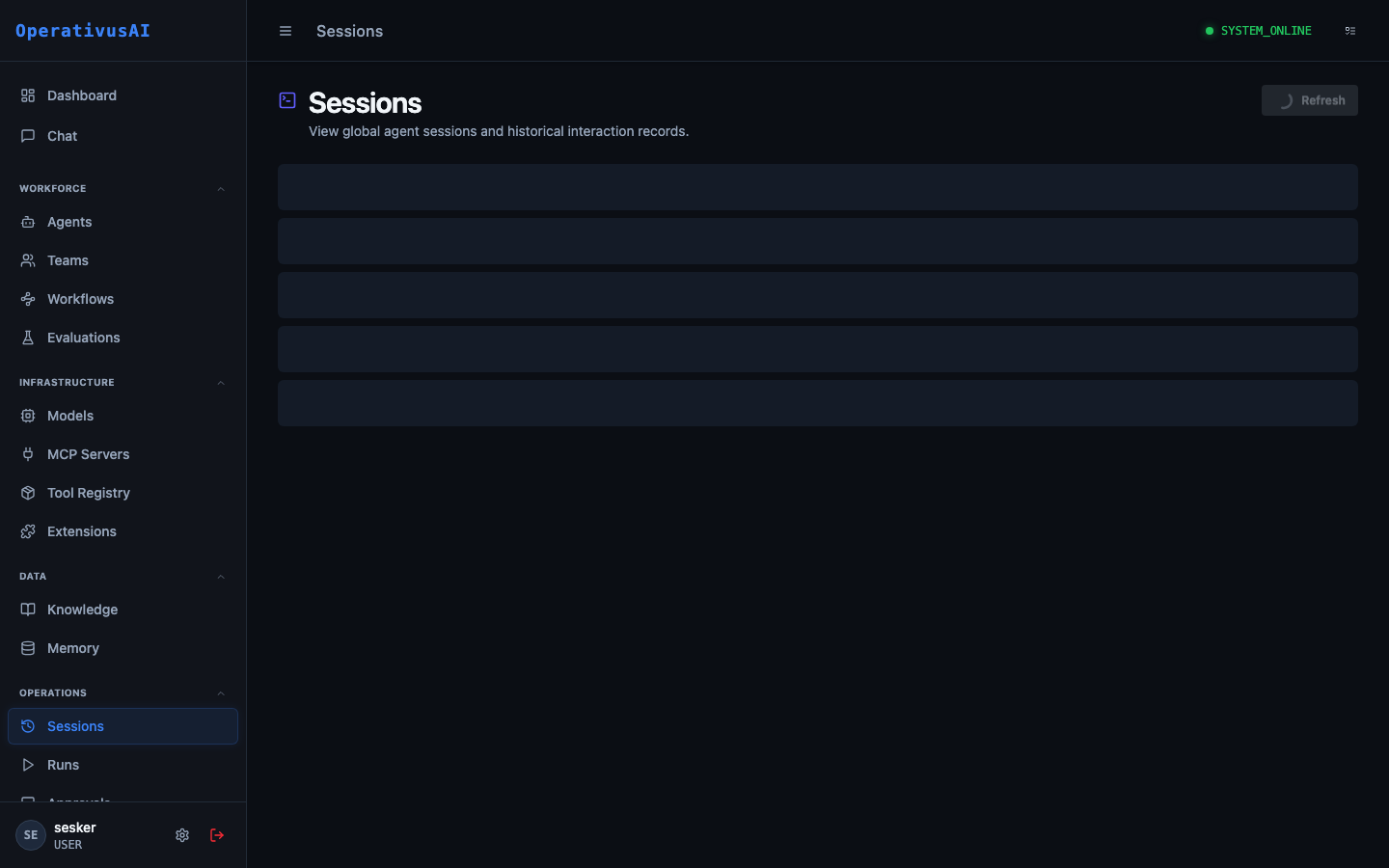
Sessions — live execution ledger showing all active and historical agent runs.
Session Anatomy
A session is composed of hierarchical records:
Key Capabilities
Full Message Trace
Every conversation turn is recorded with the exact message content, token counts, model used, and timestamp — for both user and assistant roles.
Tool Call Audit
Every MCP tool invocation is logged with complete input and output payloads, latency, status, and the source MCP server — no tool call goes unrecorded.
Per-Session Cost
Token consumption and cost are calculated and attributed per session, per turn, and per model — feeding directly into FinOps spend analytics.
Real-Time Streaming
View live streaming output for in-progress sessions. Watch the agent reason, call tools, and construct responses in real time via SSE.
Session Termination
Terminate a running session immediately from the admin UI or API — useful when an agent is looping, consuming excessive tokens, or taking unexpected actions.
Searchable Ledger
Search sessions by agent, user, status, date range, cost threshold, or tool invocation — with full-text search across message content.
Administration
Sessions List
Navigate to Operations → Sessions. The sessions list provides a high-density table of all sessions with the following columns:
| Column | Description |
|---|---|
| Session ID | Truncated UUID with copy button. Click to open detail view. |
| Agent | Agent name (and team name if team execution). Links to agent configuration. |
| Status | Color-coded badge: COMPLETED RUNNING FAILED TERMINATED |
| User | The user or system identity that initiated the session. |
| Started | Relative timestamp (e.g., "3 minutes ago"), with absolute on hover. |
| Duration | Elapsed time from start to completion. |
| Turns | Number of conversation turns in the session. |
| Tokens | Total tokens consumed (input + output). |
| Cost | Calculated cost in USD based on model rates. |
Session Detail View
Click any session to open the detail view. The detail page is organized into three panels:
- Session Header: Status, agent, user, start/end time, total tokens, total cost, and quick-action buttons (Terminate, Export).
- Message Trace: The full conversation thread in chronological order.
- Tool Calls: A separate tab showing all tool invocations with full payloads.
Message Trace
The Message Trace renders the session as a conversation thread. Each turn shows:
- Role indicator: User (person icon), Assistant (agent icon), Tool (wrench icon), System (gear icon).
- Message content: Full text of the message. Long messages are collapsed with an expand toggle.
- Turn metadata: Timestamp, input tokens, output tokens, model ID used for assistant turns.
- Thinking traces: If the agent used extended thinking (Claude's reasoning traces), a collapsible "Thinking" block is shown before the final response.
- Tool call indicators: Inline markers where tool invocations occurred, with links to the full tool call record.
Tool Call Log
The Tool Calls tab provides a dedicated view of every tool invocation in the session:
- Tool name and MCP server — with a link to the tool's Registry entry.
- Input payload: Full JSON of the arguments the agent passed to the tool.
- Output payload: Full JSON of the tool's return value.
- Status: SUCCESS, ERROR (with error message), or TIMEOUT (with configured timeout value).
- Latency: Round-trip time in milliseconds.
- Turn index: Which conversation turn triggered this tool call.
When an agent fails unexpectedly, check the Tool Call Log first. A tool returning an error or empty payload is the most common cause of confused agent behavior. The full input/output payloads make it easy to reproduce the exact invocation that failed.
Searching & Filtering Sessions
The sessions list supports compound filtering:
- Agent filter: Show sessions for a specific agent or team.
- Status filter: Show only RUNNING, COMPLETED, FAILED, or TERMINATED sessions.
- Date range: Filter by session start time using a date range picker.
- Cost threshold: Show sessions exceeding a specified cost (e.g., > $0.50).
- User filter: Show sessions initiated by a specific user account.
- Full-text search: Search across message content for keyword terms.
Terminating Running Sessions
To stop a running session immediately:
- 1Locate the session
Find the RUNNING session in the sessions list — it will show a pulsing status indicator.
- 2Open the session detail
Click the session ID to open the detail view and confirm this is the session you want to terminate.
- 3Click "Terminate Session"
The terminate button appears in the session header. A confirmation dialog will appear.
- 4Confirm termination
The session status changes to TERMINATED. Any in-flight tool calls will be cancelled. The partial message trace is preserved in the ledger.
The terminate signal is sent immediately, but tool calls that are already in-flight at the MCP server level may still complete on the server side. Procurator stops consuming the result, but the external action may have already executed.
Session Lifecycle
| Status | Meaning | Terminal? |
|---|---|---|
| RUNNING | Agent is actively processing. New turns may still be added. | No |
| PENDING_APPROVAL | Session is paused waiting for a human approval gate decision. | No |
| COMPLETED | Agent finished execution successfully. Final response delivered. | Yes |
| FAILED | Session ended due to an unhandled error. Error details in the trace. | Yes |
| TERMINATED | Manually stopped by an administrator. | Yes |
| TIMEOUT | Session exceeded the configured execution timeout. | Yes |
Retention & Export
Session records are retained according to your organization's configured retention policy (default: 90 days). Before records are purged, you can:
- Export a single session: Download the full session as a JSON file from the session detail view. Includes all turns and tool call payloads.
- Bulk export: Use the API to programmatically export sessions matching a filter to your own long-term storage. See the Sessions API documentation.
- Compliance archive: Organizations with compliance requirements can configure Procurator to stream session records to an external SIEM or audit log system via webhook.
Session token and cost data feeds directly into the FinOps module. Every completed session's token counts are applied against the associated agent's budget, and cost attribution rolls up to team and organizational budget dashboards in real time.
Permissions
- sessions:read— View sessions and their message traces for agents in your teams
- sessions:read:all— View all sessions across all teams and agents (admin-only)
- sessions:terminate— Terminate running sessions
- sessions:export— Export session records as JSON