Overview
Every agent in Procurator is ultimately a conversational entity — the Chat Playground gives operators and developers a direct window into that conversation. Instead of constructing API requests manually, you open a session, type a message, and observe exactly how the agent reasons, which tools it calls, and what it returns.
Because Chat Playground sessions are full Procurator sessions, they appear in the Sessions ledger, consume FinOps budget, and generate Audit events — there is no special "test mode" that bypasses governance controls. What you see in the Playground is exactly what a production caller would experience.
The Playground does not mock or sandbox — it executes against real tools, real knowledge bases, and real model APIs. Budget limits, approval gates, and security policies all apply. This is intentional: it means Playground testing accurately predicts production behavior.
Control Panel
The screenshot below shows the live Procurator Chat Playground interface.
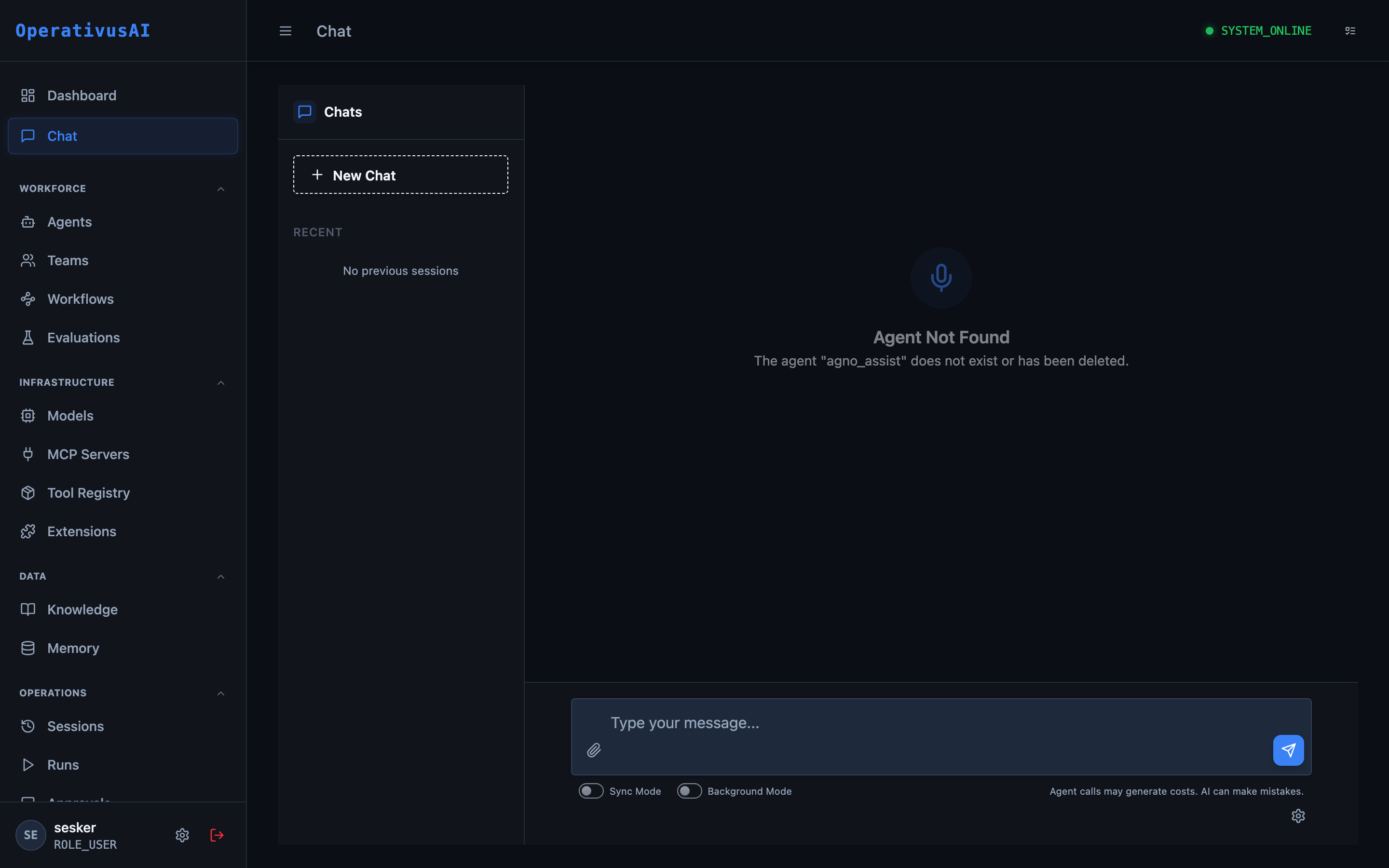
Chat Playground — interactive console for conversing directly with any configured agent.
Key Capabilities
Live Agent Conversation
Send messages to any agent and receive streamed responses in real time. Switch between agents mid-session to compare behavior side by side.
Tool Call Transparency
Every MCP tool invocation is surfaced inline — you can see the tool name, input arguments, raw output, and latency without leaving the chat view.
Sync & Background Modes
Run agents synchronously (blocking, ideal for debugging) or in background mode (non-blocking, mirrors production async usage).
Session History
All previous Playground sessions are listed in the sidebar for recall and review. Sessions persist and are linked to the Sessions ledger.
Context Window Visibility
Inspect how many turns remain in the context window and review the full message history to understand how context is being consumed.
File & URL Attachment
Attach documents or URLs directly in the chat input to inject content into the agent's context for analysis, summarization, or comparison.
How It Works
When you send a message in the Playground, the platform creates (or continues) a full Procurator Session bound to the selected agent:
If the agent hits an Approval Gate mid-execution, the Playground surfaces the pending approval inline and pauses until a reviewer approves or rejects.
Execution Modes
| Mode | Behavior | Best For |
|---|---|---|
| Sync Mode | The UI blocks and streams the response in real time. The request completes before you can send the next message. | Debugging, step-by-step analysis, demos |
| Background Mode | The request is dispatched asynchronously. The UI returns immediately; you receive a notification when the agent finishes. | Long-running tasks, testing async agent workflows |
Toggle between modes using the Sync Mode and Background Mode switches in the input bar footer.
Session Management
The left sidebar lists all previous Chat Playground sessions grouped by recency. Each session retains its full message history and can be re-opened at any time to continue the conversation or review prior outputs.
Starting a New Chat creates a fresh session with a clean context. The previous session is archived and accessible from the sidebar.
Use the Sessions page to see full execution details — token counts, tool call logs, latency breakdown, and cost attribution — for any Playground session.
Tool Call Visibility
When an agent invokes an MCP tool during a Playground session, the UI renders an expandable tool call block inline in the conversation:
- Tool name — the MCP server and tool identifier (e.g.,
web_search.search) - Input arguments — the exact JSON payload sent to the tool
- Output — the raw result returned by the tool
- Latency — time taken for the tool call to complete
- Status — SUCCESS, ERROR, or TIMEOUT
This makes the Playground the fastest way to verify that tool integrations are working correctly before deploying agents to production workflows.
Permissions
- sessions:create Start a new Chat Playground session with any accessible agent
- sessions:read View your own previous Playground sessions
- sessions:read:all View Playground sessions started by other users (Operator+ role)
- agents:read Required to list and select agents in the Playground agent picker