Overview
Schedules remove the human from repetitive, time-sensitive workflows. Instead of manually triggering an agent every morning to generate a status report or every hour to check for anomalies, you define the schedule once and Procurator handles execution reliably.
Each scheduled run creates a full Session record — identical to a manually triggered session. The complete execution trace, token counts, costs, and any approval requests are all captured exactly as if a human had triggered the run.
A Schedule is a trigger mechanism — it defines when to run. A Workflow defines how to run (the execution graph). Schedules can trigger either a direct agent invocation (with a fixed prompt) or a full Workflow execution.
Control Panel
The screenshot below shows the live Procurator administration interface for this feature.
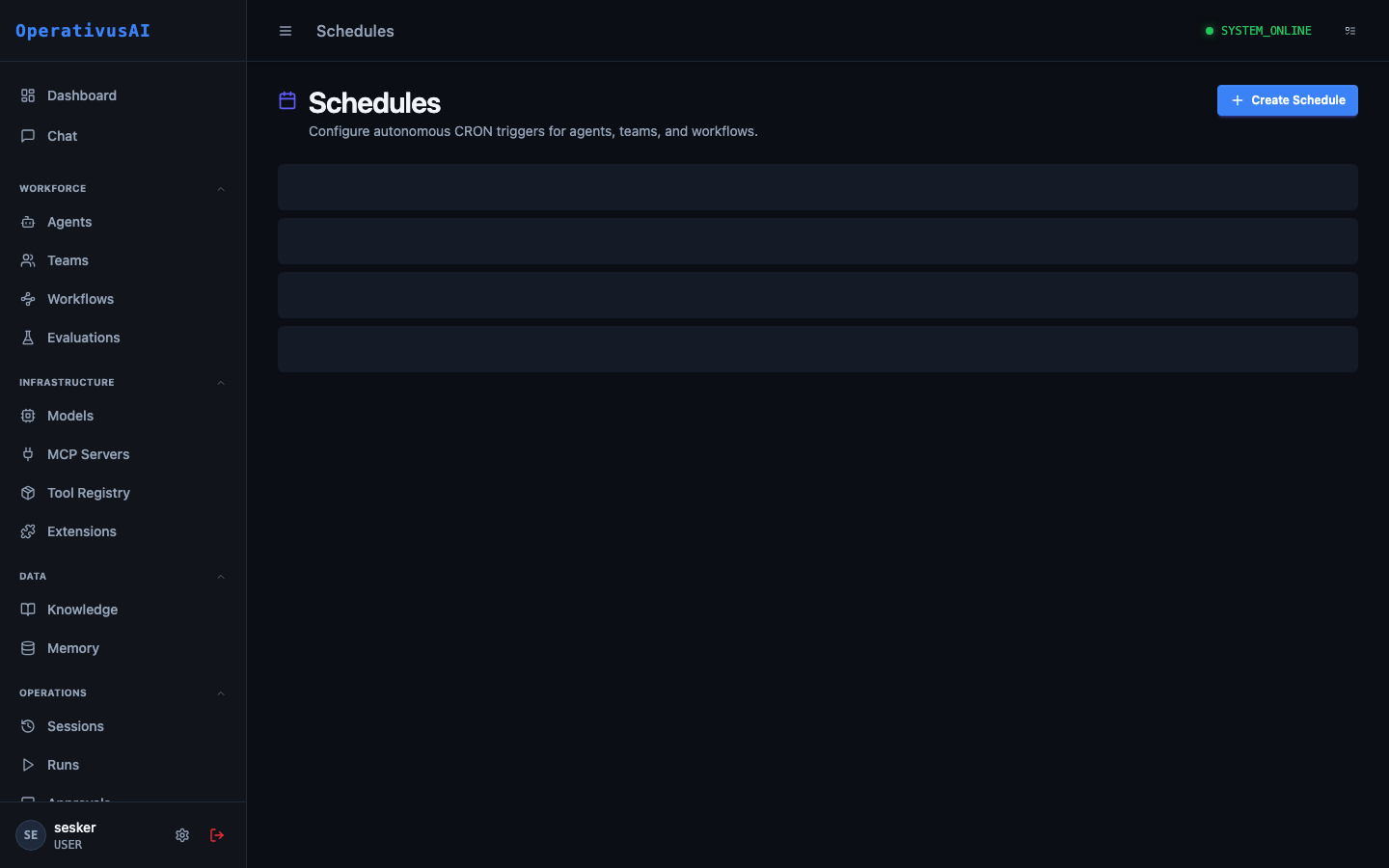
Schedules — cron and interval triggers for automated agent and workflow execution.
Key Capabilities
Cron & Interval Triggers
Use standard cron expressions for complex schedules (every weekday at 9am) or simple interval expressions (every 15 minutes).
Timezone Support
Configure schedules in any IANA timezone. Procurator handles DST transitions automatically — no offset math required.
Parameterized Prompts
Inject dynamic values into the schedule's input prompt using template variables — dates, identifiers, or environment-specific values resolved at execution time.
Retry on Failure
Configure automatic retries on execution failure with configurable backoff. Receive alerts when a schedule exhausts its retry budget.
Execution History
View the complete run history for any schedule — success/failure rates, duration trends, and links to each run's full Session record.
Failure Alerts
Configure notifications for failed schedule runs via email, Slack, or webhook — catch broken schedules before they go unnoticed.
Administration
Creating a Schedule
- 1Navigate to Operations → Schedules
The Schedules page lists all active and paused schedules with their next run time and last run status.
- 2Click "Create Schedule"
The schedule creation form opens.
- 3Name and describe the schedule
Give the schedule a descriptive name (e.g., "Daily Cost Report — Engineering") and an optional description.
- 4Select the target
Choose whether this schedule runs an Agent directly (with a fixed prompt) or triggers a Workflow execution. Select the agent or workflow from the dropdown.
- 5Configure the trigger
Enter a cron expression or select a simple interval. Use the cron preview to verify the next 5 run times are as expected.
- 6Set timezone
Select the IANA timezone for the schedule. Defaults to the organization's configured timezone.
- 7Configure the input
For agent targets: write the prompt template. For workflow targets: provide the workflow input JSON. Use
{{date}},{{datetime}}, and custom variables in templates. - 8Configure failure behavior
Set retry count, retry delay, and failure notification channel.
- 9Save and activate
The schedule is created and immediately activated. The next run is scheduled according to the cron expression.
Configuration Reference
| Field | Type | Required | Description |
|---|---|---|---|
| name | string | required | Display name for this schedule. |
| targetType | enum | required | AGENT or WORKFLOW. |
| targetId | string | required | The agentId or workflowId to execute on trigger. |
| cronExpression | string | required | Standard 5-field cron expression or interval shorthand (e.g., @hourly, @daily). |
| timezone | string | optional | IANA timezone name (e.g., America/New_York). default: UTC |
| inputTemplate | string / object | optional | Prompt string (for agent targets) or JSON object (for workflow targets). Supports {{date}}, {{datetime}}, {{iso_date}} template variables. |
| maxRetries | integer | optional | Number of retry attempts on failure. default: 0 |
| retryDelaySeconds | integer | optional | Delay between retries in seconds. default: 60 |
| failureWebhookUrl | string | optional | URL to POST on schedule run failure after all retries are exhausted. |
| enabled | boolean | optional | Whether the schedule is active. default: true |
Cron Expression Syntax
Procurator uses standard 5-field cron syntax: minute hour day-of-month month day-of-week
Schedule History
Navigate to Operations → Schedule History (or click "View History" on any schedule) to see the run log. Each row shows:
- Run ID: Unique identifier for this execution. Links to the full Session record.
- Triggered At: The scheduled time the run was due and the actual fire time (should differ by <1 second).
- Status: COMPLETED, FAILED, RETRYING, or SKIPPED (if the previous run was still active when the next fire time arrived — configurable).
- Duration: Time from run start to completion.
- Tokens / Cost: Token consumption and cost for this run.
- Retry Attempt: Which attempt this was (1, 2, 3...) if the run was retried.
Managing Schedules
- Pause a schedule: Click the toggle on the schedule row to disable it. Future runs will not fire until re-enabled. In-flight runs complete normally.
- Run now: Trigger an immediate one-off execution of the schedule's target without affecting the recurring schedule. Useful for testing.
- Edit: Modify any field of the schedule. Changes take effect on the next scheduled fire time.
- Delete: Remove the schedule permanently. Historical run records are retained in Schedule History.
By default, if a scheduled run is still executing when the next fire time arrives, the new run is SKIPPED to prevent overlapping executions. Configure allowConcurrent: true on the schedule to allow parallel runs (use with caution for stateful operations).
Execution Context
Scheduled runs execute under a system identity, not a specific user account. This has several implications:
- No user context: The agent does not have access to user-specific memory unless the schedule explicitly provides a
userIdcontext parameter. - Budget attribution: Costs from scheduled runs are attributed to the agent's configured FinOps budget, tagged as scheduled-origin runs.
- Approval gates: If a scheduled workflow hits an Approval Gate, the session pauses and enters the approvals queue — it does not auto-approve. Design scheduled workflows to avoid approval gates for fully automated pipelines, or configure auto-approve for trusted scheduled sources.
Error Handling & Retries
When a scheduled run fails, Procurator applies the configured retry policy:
- The run is marked FAILED and a retry is scheduled after
retryDelaySeconds. - The retry fires and creates a new Session record (linked to the original run via
scheduleRunId). - If all retries are exhausted and the run is still failing, the schedule run is marked FAILED_FINAL and the failure webhook is called.
- The schedule itself remains active — the next scheduled fire time proceeds normally.
If your agent performs external writes (database updates, API mutations), ensure those operations are idempotent — a retried run will re-execute the full agent prompt, potentially re-applying the same operation. Use idempotency keys where supported by the target system.
Permissions
- schedules:read— View schedules and run history
- schedules:create— Create new schedules
- schedules:modify— Edit, pause, resume, and trigger schedules
- schedules:delete— Delete schedules