Overview
RAG (Retrieval-Augmented Generation) is the primary technique for grounding language model responses in your organization's own data. Instead of relying on a model's static training knowledge — which may be outdated, incomplete, or simply absent — RAG retrieves the most semantically relevant passages from your documents at query time and injects them into the agent's context.
In Procurator, Knowledge Base Collections are the containers for this indexed content. Each collection holds a set of ingested documents chunked into overlapping windows, embedded as vectors, and stored in pgvector for fast approximate nearest-neighbor search. Collections are then assigned to one or more agents — Procurator handles retrieval automatically on every inference.
Vector search in Procurator enforces Row-Level Access Controls at query time. An agent retrieves only the document chunks that the requesting user is authorized to see — even when multiple users share the same collection and the same agent.
How RAG Works in Procurator
Content flows through a two-phase pipeline — ingestion and retrieval:
The embedding model used during ingestion must match the model used at retrieval time. Procurator enforces consistency within each collection.
Knowledge Base Page
Navigate to Resources → Knowledge to reach the Knowledge Base page. The layout is a two-panel interface: a Collections sidebar on the left and a collection detail panel on the right with four tabs.
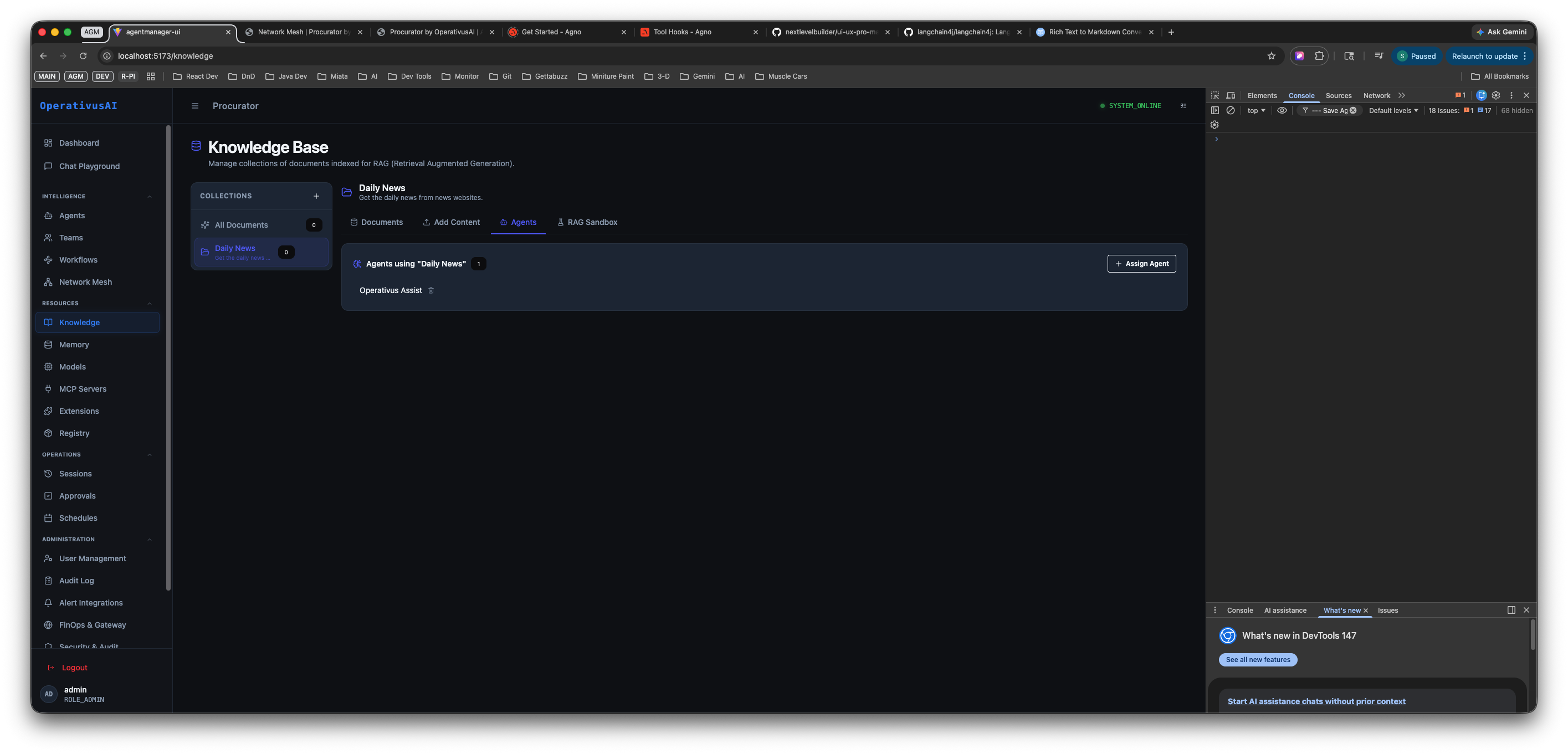
Knowledge Base — Collections sidebar (left) with the "Daily News" collection selected, and the Agents tab (right) showing which agents are assigned to that collection. Operativus Assist is the assigned agent.
Collections Sidebar
The left panel lists all knowledge base collections in your organization. The sidebar contains:
- All Documents — A virtual collection at the top that shows every ingested document across all collections. Use this to search or audit content organization-wide.
- Named collections — Each collection you have created appears as a separate entry with a colored indicator dot showing its status. Click any collection to open it in the detail panel.
- + Add Collection — Creates a new named collection. See the Creating a Collection section below.
The selected collection is highlighted. The detail panel on the right updates immediately when you click a different collection in the sidebar.
Collection Detail Tabs
When a collection is selected, the detail panel shows four tabs across the top:
| Tab | Purpose |
|---|---|
| Documents | Browse all documents ingested into this collection. View file names, ingestion timestamps, chunk counts, and status. Delete individual documents to remove their vectors from the index. |
| Add Content | Upload new documents or submit a URL for ingestion. Supports PDF, TXT, MD, CSV, JSON, DOCX, and any publicly accessible URL. |
| Agents | View which agents are currently assigned to this collection and assign or unassign agents. Only assigned agents will perform RAG retrieval against this collection at inference time. |
| Add Sandbox | Interactive RAG testing interface. Submit natural language queries and see which chunks are retrieved and ranked — validate retrieval quality before assigning agents. |
Documents Tab
The Documents tab is the document inventory for the selected collection. It shows every piece of content that has been ingested — files uploaded and URLs crawled. For each item you can see:
- The document name or URL source
- Ingestion timestamp and status (processing, indexed, or failed)
- Number of chunks generated from this document
- A delete control to remove the document and all its associated vectors from the index
Use the Documents tab to audit what is in your collection, identify stale content, and remove documents that should no longer be retrieved by agents.
Add Content Tab
The Add Content tab is how you populate a collection with searchable knowledge. It supports two ingestion methods: URL ingestion and file upload.
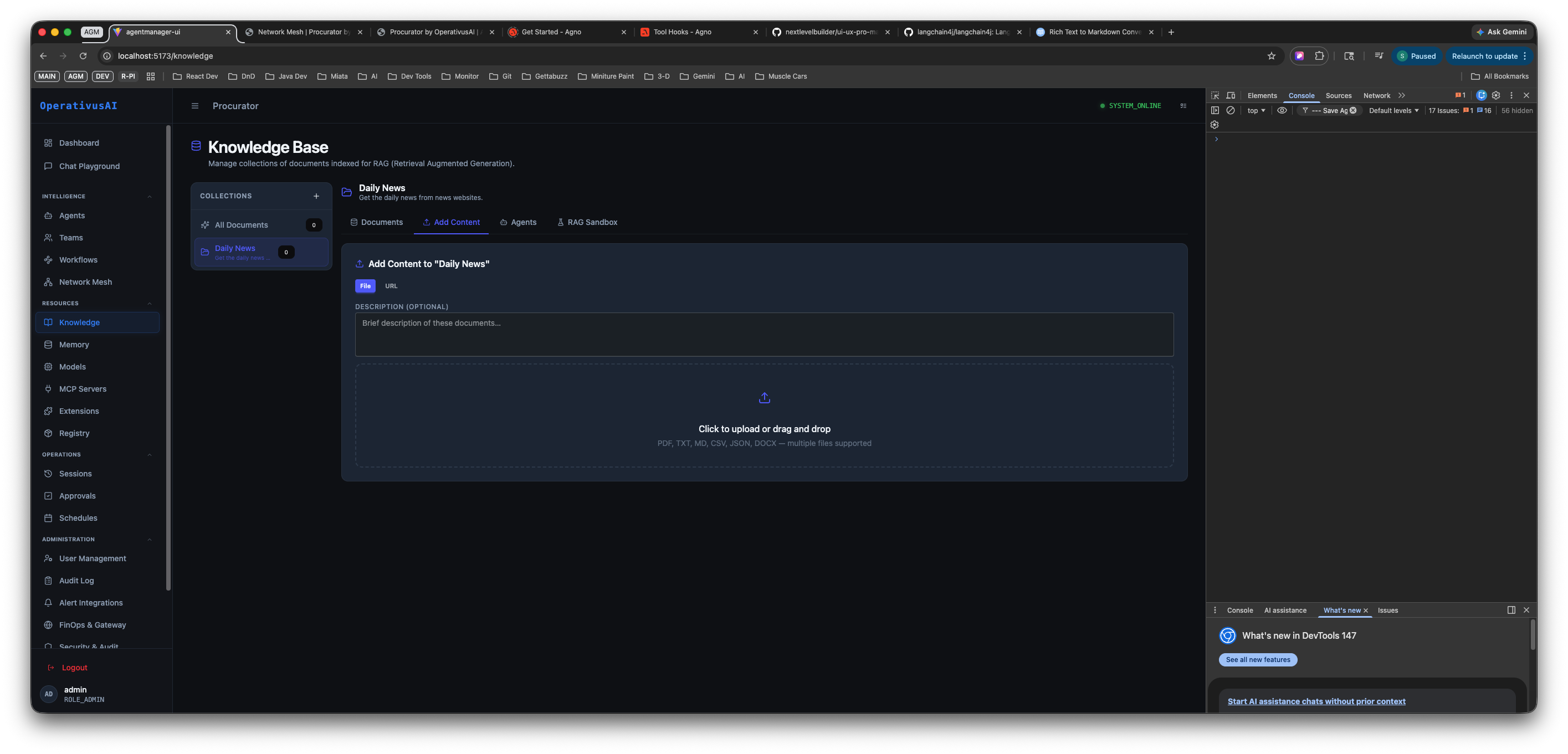
Add Content tab — enter a URL to crawl or drag-and-drop files into the upload zone. Supported formats: PDF, TXT, MD, CSV, JSON, DOCX.
URL Ingestion
Enter any publicly accessible HTTPS URL in the URL field. Procurator fetches the page, strips navigation and boilerplate HTML, extracts the text content, chunks it, and embeds it into the collection's vector index.
- The Description (optional) field lets you annotate what this URL represents — helpful for audit purposes and for agents to understand context when this content is retrieved.
- URL ingestion respects
robots.txtby default. Private URLs and localhost addresses are blocked.
File Upload
Drag files into the upload zone or click it to open a file picker. Multiple files can be uploaded at once. Supported formats:
| Format | Notes |
|---|---|
| Text is extracted per-page. Scanned/image-only PDFs require OCR preprocessing before upload. | |
| TXT | Plain text files. Ingested verbatim with no markup stripping. |
| MD | Markdown files. Markdown syntax is stripped; headings are used as chunk boundary hints. |
| CSV | Each row is treated as a text record. Column headers are prepended to each row chunk for context. |
| JSON | Structured data. Text fields are extracted and flattened into chunks; nested objects are serialized. |
| DOCX | Microsoft Word documents including formatted text, tables, and lists. |
Ingestion is asynchronous. The Documents tab shows a processing indicator while chunking and embedding are in progress. Large documents (100+ pages) may take 1–2 minutes to fully index.
Agents Tab
The Agents tab controls which agents are connected to this knowledge collection. Only agents listed here will query this collection at inference time.
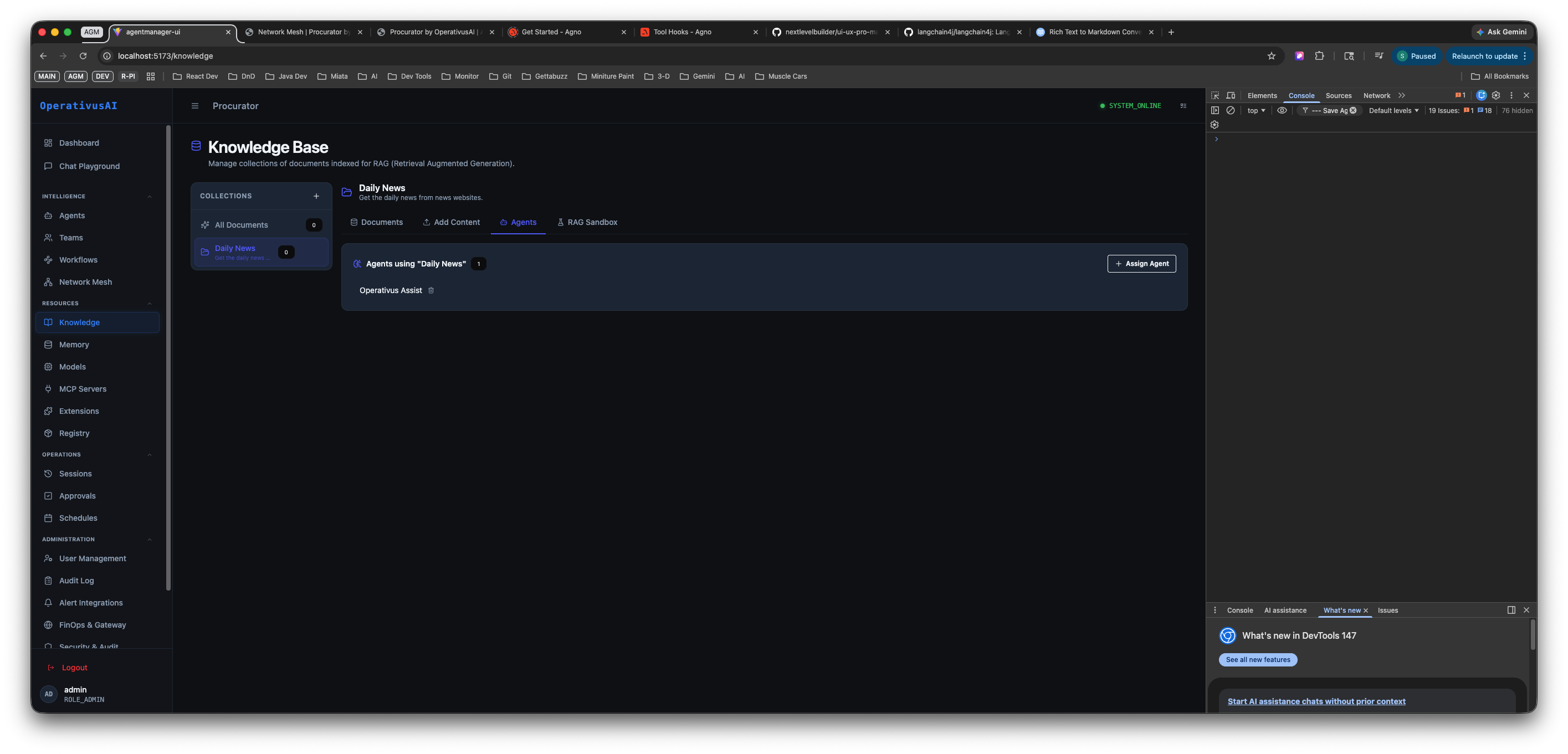
Agents tab — shows agents currently assigned to the "Daily News" collection. Operativus Assist is assigned (shown as a removable tag). Click "Assign Agent" to connect additional agents.
How to Assign an Agent
- Select the target collection in the Collections sidebar.
- Click the Agents tab in the detail panel.
- Click + Assign Agent (top right of the tab).
- Select an agent from the dropdown list of registered agents in your organization.
- The agent now appears as a tag in the "Agents using [collection name]" list.
How to Unassign an Agent
Click the × on the agent's tag in the assigned agents list. The agent immediately loses access to this collection's vectors — its subsequent inferences will not retrieve content from this knowledge base.
A single agent can be assigned to multiple collections. At inference time, Procurator runs parallel vector searches across all assigned collections and merges the top-K results before injecting them into the agent's context. Assign tightly scoped collections to agents rather than one large catch-all collection for better retrieval precision.
Add Sandbox Tab
The Add Sandbox tab opens an interactive RAG testing interface for the selected collection. Use it to validate retrieval quality before assigning agents to the collection in production.
- Enter a natural language query in the sandbox input field.
- Procurator runs the same retrieval pipeline agents use: embeds the query, performs ANN search against the collection's vectors, applies RLAC filters, and returns the top-K chunks.
- Each returned chunk shows its source document, chunk text, and cosine similarity score.
- A score above 0.80 indicates strong semantic relevance. Below 0.60 suggests the collection may not contain content that matches the query well.
Run 10–15 representative queries before assigning a collection to a production agent. If retrieval quality is poor, consider adjusting chunk size, re-ingesting documents with more descriptive metadata, or refining the collection's scope.
Key Capabilities
Named Collections
Organize knowledge into purpose-built collections — separate HR policies, engineering docs, and product data so agents retrieve only what's relevant to their domain.
Multi-Format Ingestion
Upload PDF, DOCX, TXT, Markdown, CSV, and JSON files, or submit any public URL. Text extraction and chunking is fully automatic.
URL Ingestion
Submit a URL and Procurator fetches, parses, and indexes the page content — keeping documentation sites and news feeds continuously fresh.
Agent Assignment
Assign collections to specific agents directly from the Agents tab. One agent can draw from multiple collections; one collection can serve many agents.
RAG Sandbox
Test retrieval quality interactively before going live. See exactly which chunks are returned, ranked by cosine similarity, for any query you enter.
RLAC on Retrieval
Row-level access controls filter retrieved chunks at query time — users never receive document passages above their clearance level, even from shared collections.
Live Re-ingestion
Add or remove documents at any time. New content is indexed immediately; removed documents are purged from the vector store without requiring a full re-index.
pgvector ANN Search
Approximate nearest-neighbor search powered by pgvector delivers sub-100ms retrieval latency even across collections with hundreds of thousands of chunks.
Creating a Collection
-
1Navigate to Resources → Knowledge
The Knowledge Base page opens with the Collections sidebar on the left. If no collections exist, the sidebar shows only "All Documents" and the "+ Add Collection" button.
-
2Click "+ Add Collection"
A creation prompt appears. Enter a descriptive name for the collection — this name appears in the sidebar, in the Agents tab, and in agent context metadata when content from this collection is retrieved.
-
3Add content via the Add Content tab
With the new collection selected in the sidebar, click the Add Content tab. Upload files by dragging them into the upload zone or clicking to browse, or paste a URL to ingest a web page. Provide an optional description to annotate the content source.
-
4Wait for ingestion to complete
Switch to the Documents tab to monitor ingestion status. Documents show a processing indicator while chunking and embedding are in progress. Large files may take a minute or two. Only fully indexed documents contribute to retrieval.
-
5Validate retrieval quality in the Sandbox
Click the Add Sandbox tab and run representative queries to verify that the collection returns relevant chunks. Check cosine similarity scores — aim for 0.80+ on your core query types before assigning the collection to a production agent.
-
6Assign agents via the Agents tab
Click the Agents tab and use + Assign Agent to connect one or more registered agents to this collection. Assigned agents will automatically query this collection at inference time — no additional agent configuration is required.
Configuration Reference
| Field | Type | Required | Description |
|---|---|---|---|
| Collection Name | string | required | Unique display name for the collection. Appears in the sidebar, agent assignment views, and retrieved chunk metadata. |
| Content URL | URL | optional | Public HTTPS URL to ingest. Private/localhost addresses are blocked. Procurator fetches, parses, and chunks the page content. |
| Content Description | string | optional | Brief annotation describing the uploaded content or URL source. Shown in the Documents tab and passed as metadata with retrieved chunks. |
| Uploaded Files | file[] | optional | One or more files to ingest. Supported: PDF, TXT, MD, CSV, JSON, DOCX. Multiple files can be uploaded simultaneously. |
| Embedding Model | string | required | Model used to generate vector embeddings. Must remain consistent across all documents in a collection — changing models requires re-ingesting all content. |
| Chunk Size | integer | optional | Token count per chunk window. default: 500. Smaller = higher precision; larger = more context per chunk. |
| Chunk Overlap | integer | optional | Token overlap between adjacent chunks to preserve boundary context. default: 50. |
| Top-K | integer | optional | Number of chunks returned per retrieval query across all assigned collections. default: 5. |
| RLAC Labels | array | optional | Access control labels applied to all chunks in this collection. Enforced at query time — users without matching labels do not receive these chunks. |
| Assigned Agents | agent[] | optional | Agents connected to this collection via the Agents tab. Each assigned agent automatically queries this collection at inference time. |
Permissions
- knowledge:read— View collections, Documents tab, and run Sandbox queries
- knowledge:create— Create new collections via "+ Add Collection"
- knowledge:ingest— Upload documents and submit URLs via the Add Content tab
- knowledge:assign— Assign and unassign agents to collections via the Agents tab
- knowledge:modify— Change collection configuration, chunk settings, and RLAC labels
- knowledge:delete— Remove collections or delete individual documents from a collection
Best Practices
- One domain per collection. Create separate collections for HR policies, engineering docs, legal contracts, and product data. Assign only the relevant collection to each agent — mixing domains degrades retrieval precision and can surface out-of-scope content.
- Always validate in the Sandbox before assigning to production agents. Run at least 10–15 representative queries using the Add Sandbox tab. Confirm that cosine similarity scores are above 0.80 for your core query patterns before enabling a collection for live agent inference.
- Write descriptive content descriptions. Use the optional Description field when adding URLs or uploading files. These descriptions appear as metadata with retrieved chunks and help agents contextualize why a particular passage was returned.
- Use smaller chunks for factual Q&A, larger for summarization. Factual agents (e.g., policy lookups, FAQ bots) benefit from 200–400 token chunks for precision. Summarization or synthesis agents work better with 600–1000 token chunks that preserve more context per retrieved passage.
- Don't exceed topK = 10. Returning too many chunks fills the agent's context window with low-relevance content, degrading response quality and increasing token costs. The default of 5 is appropriate for most use cases.
- Apply RLAC labels at ingestion time. Classify sensitive documents (PII, confidential, restricted) with appropriate access control labels when you ingest them. Re-labeling requires re-ingesting the document — it cannot be applied retroactively to existing chunks.
- Assign agents from the Knowledge Base, not just from the Agent form. The Agents tab in the Knowledge Base gives you a clear view of which agents use each collection, making it easier to audit and manage access. Prefer this view over configuring RAG connections from within individual agent settings.
- Keep URL-sourced content fresh. Set re-ingestion reminders for URL sources whose content changes regularly (news feeds, documentation sites, API changelogs). Stale vectors return outdated context to agents without any visible error.